Imagine With Craft

How to Connect Craft to Cursor with MCP
Step-by-step guide to connect Craft documents to Cursor via MCP. Read, search, and update your notes directly from Cursor.
Adding an MCP Connector in Cursor
Create a new connector in Cursor and use the MCP URL to connect the two services.
Step 1
Go to Cursor’s MCP Settings by typing
>mcp in the command palette and selecting “View: Open MCP Settings”Step 2
Open the MCP configuration file by clicking the “Add Custom MCP” button
Step 3
Copy the following MCP configuration and paste it into the MCP configuration file in Cursor. Replace
craft with a descriptive name for your MCP server. Replace <MCP_URL> with the MCP URL.{
"mcpServers": {
"craft": {
"url": "https://mcp.craft.do/my/mcp"
}
}
}Step 4
Save the MCP configuration file. It should look something like this example.
Step 5
You should now see the MCP server in the list of MCP Servers in Cursor. If you have configured a password, click the “Configure” button and follow the browser steps to log in.
Step 6
A browser window will open showing the Craft authorization page. Select the space you want to connect and click "Approve" to grant access.
You can now ask Cursor about your documents, and even have them updated. Try something like this to get started:
Click an example to copy the prompt to your clipboard
Some Ideas to Get You Started
Browse App Templates
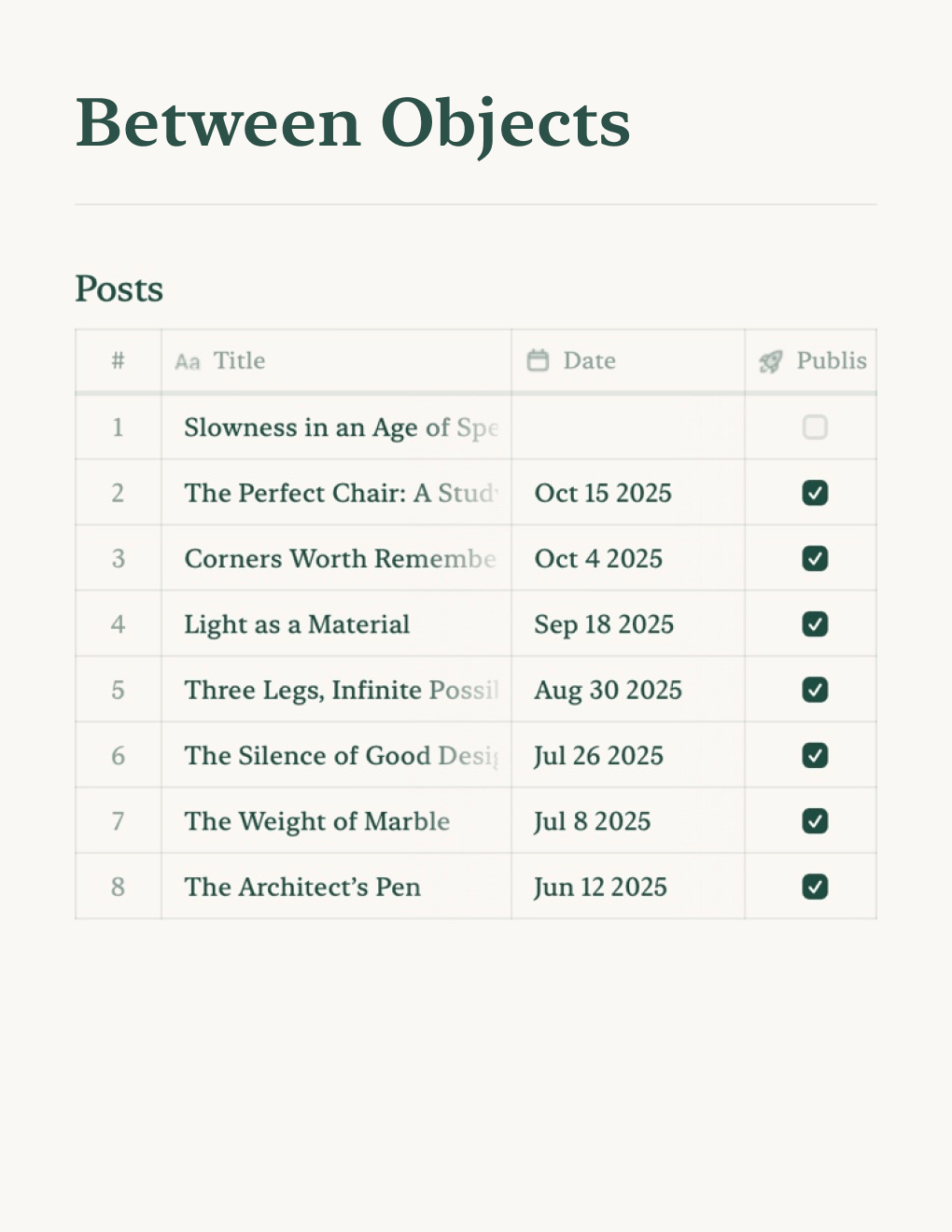

Personal Blog
Build a personal blog powered by Craft docs. Auto-syncs content via API — publish from your notes app.
Learn more

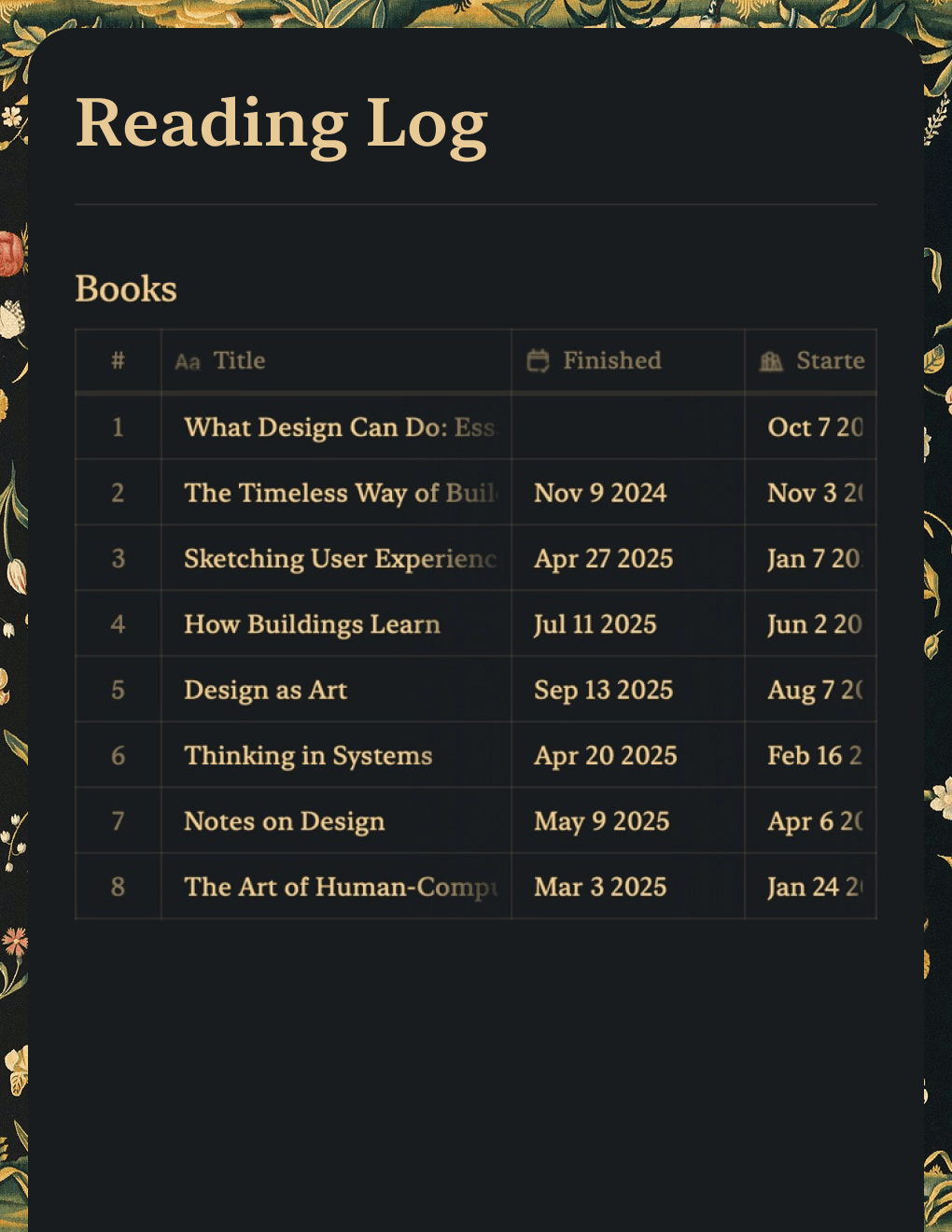
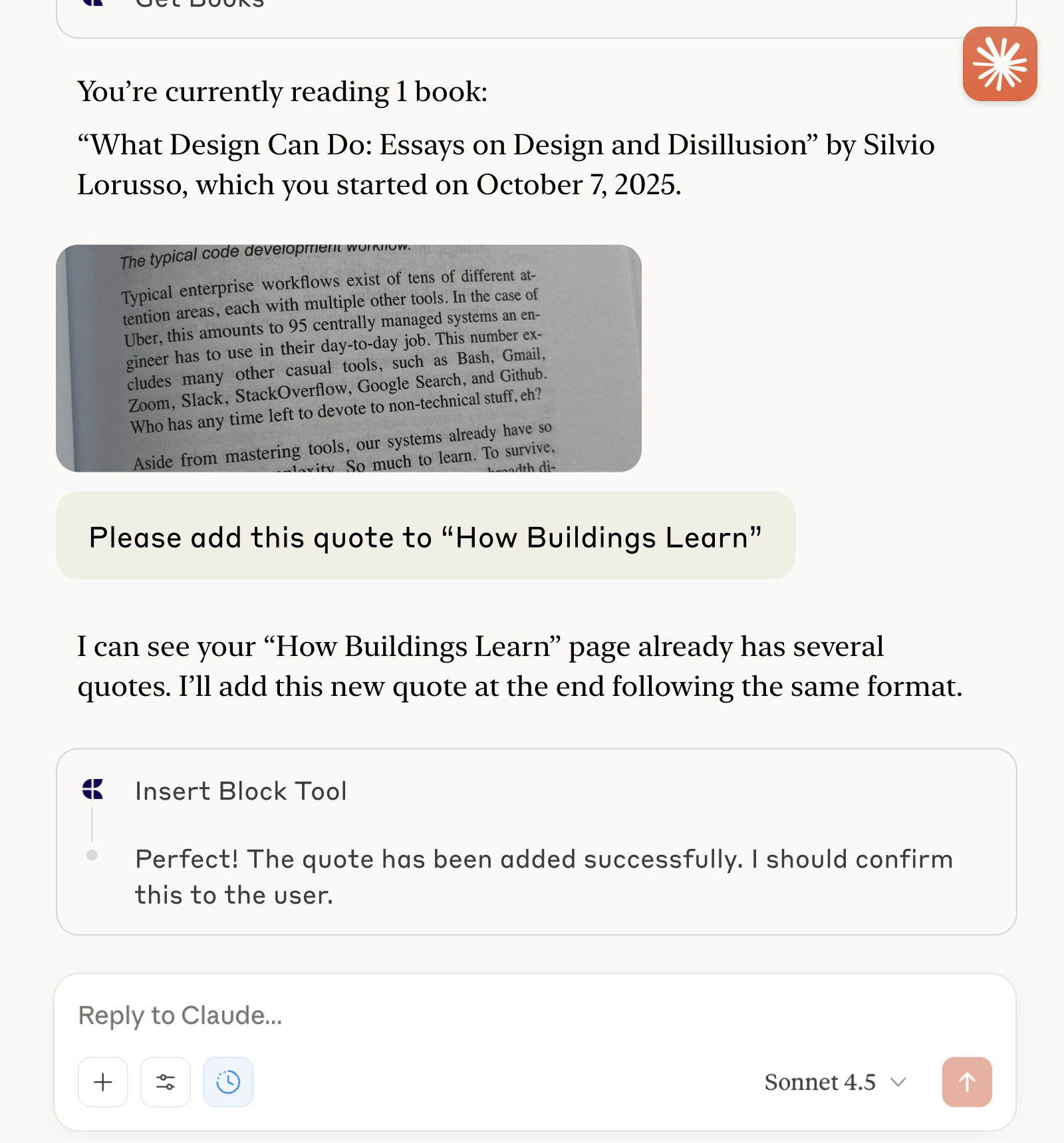
Reading Log
Track books and capture quotes with Claude or ChatGPT via MCP.
Learn more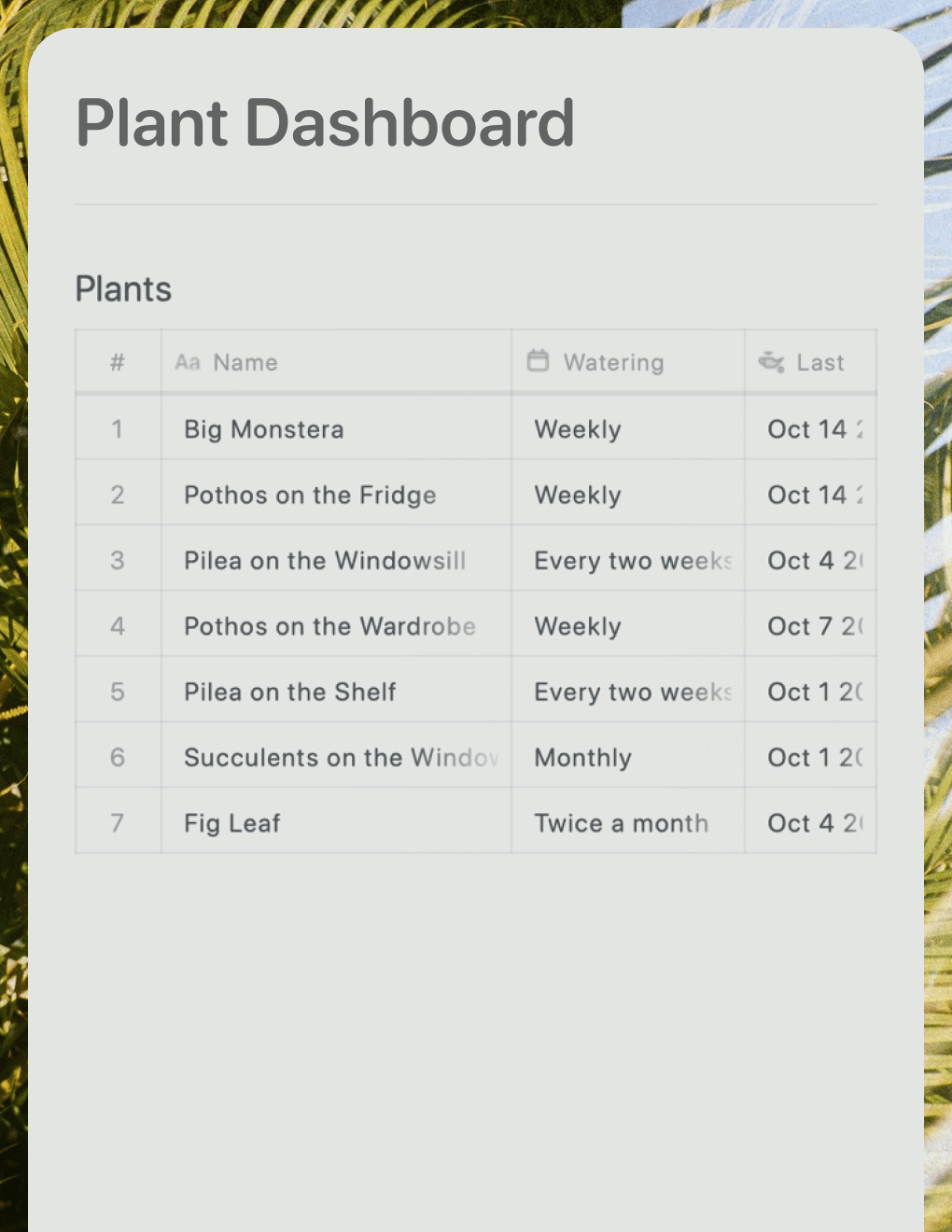

Plant Dashboard
A live plant care dashboard built with Lovable. Pulls watering schedules and care tips from your Craft doc.
Learn more