Imagine With Craft

How to Connect Craft to ChatGPT with MCP
Step-by-step guide to connect Craft documents to ChatGPT via MCP. Read, search, and update your notes directly from ChatGPT.
Adding an MCP Connector in ChatGPT
Create a new connector in ChatGPT and use the MCP URL to connect the two services.
A ChatGPT Pro, Plus, Business, Enterprise, or Edu subscription is required to add custom apps. On Business, Enterprise, or Edu plans, admin privileges are required.
Step 1
Go to ChatGPT Settings → Connectors, enable the “Developer mode” toggle and press the “Create app” button
Copy this URL and paste it into the URL field:
https://mcp.craft.do/my/mcpStep 2
Give the app a meaningful name and paste the MCP URL. Set the Authentication dropdown to "OAuth", check the consent checkbox and press "Create".
Step 3
A browser window will open showing the Craft authorization page. Select the space you want to connect and click "Approve" to grant access.
Step 4
In a chat, press the Plus button, go to “More” and select the app you just created
Step 5
You can now start using the app in this chat
You can now ask ChatGPT about your documents, and even have them updated. Try something like this to get started:
Click an example to copy the prompt to your clipboard
Troubleshooting
Some Ideas to Get You Started
Browse App Templates
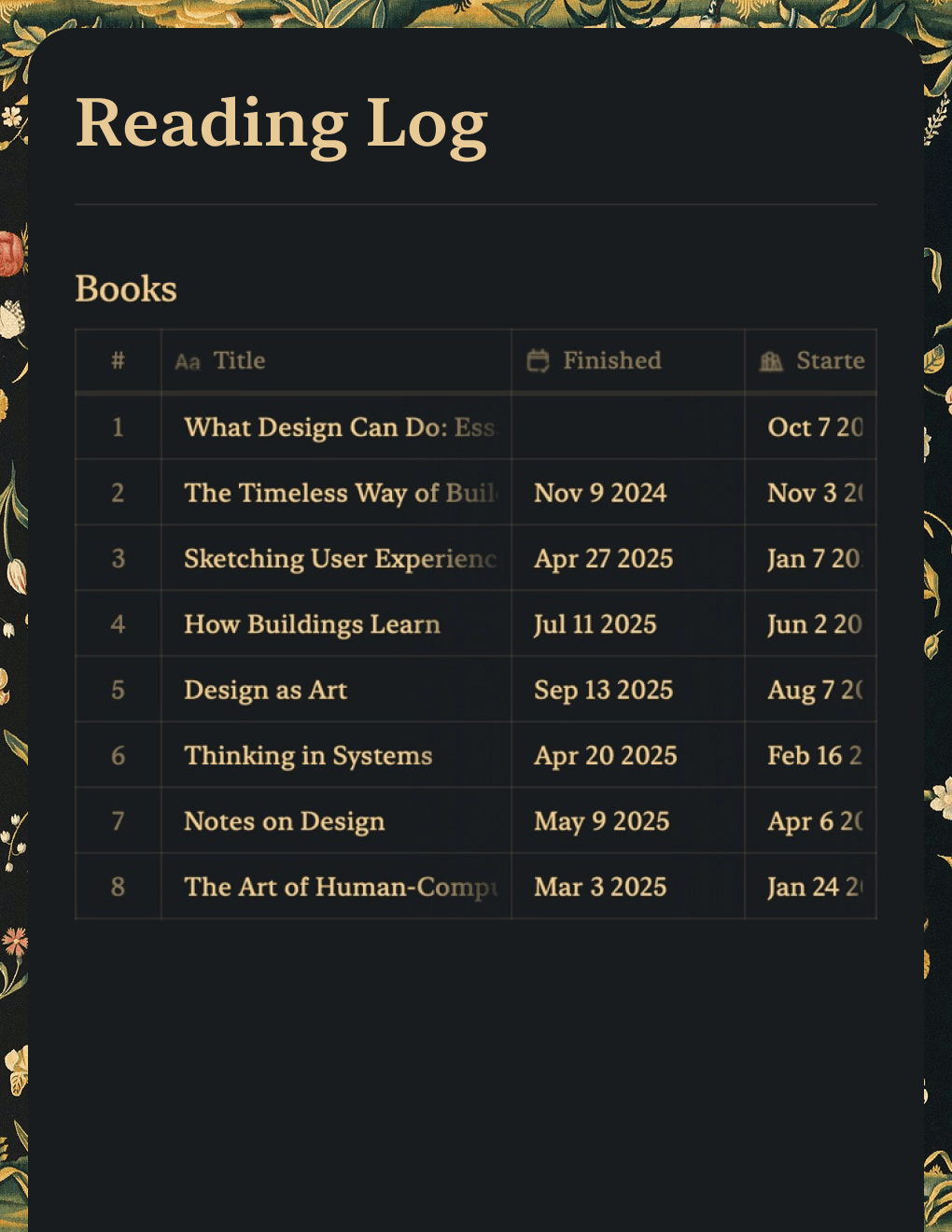
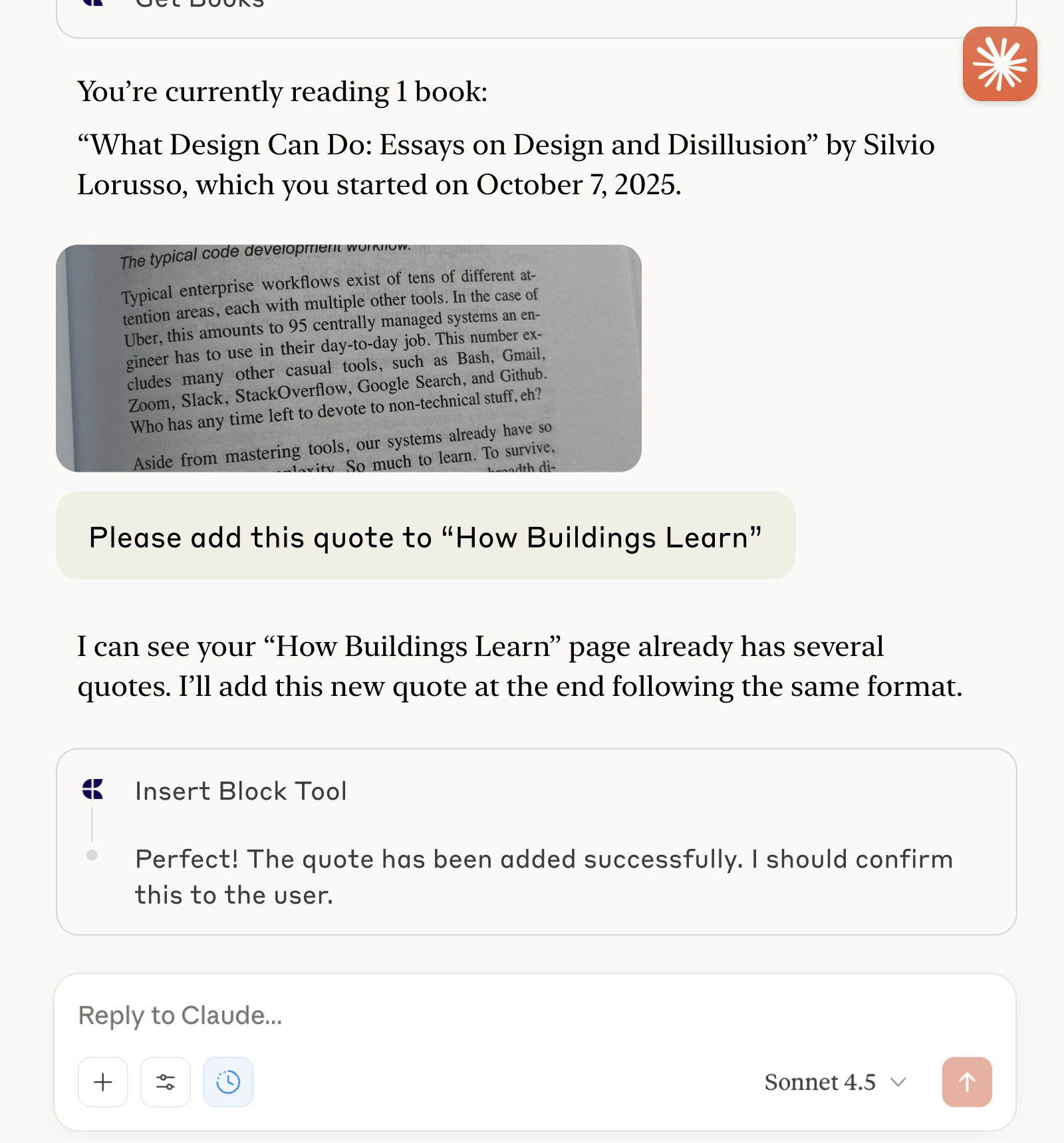
Reading Log
Track books and capture quotes with Claude or ChatGPT via MCP.
Learn more

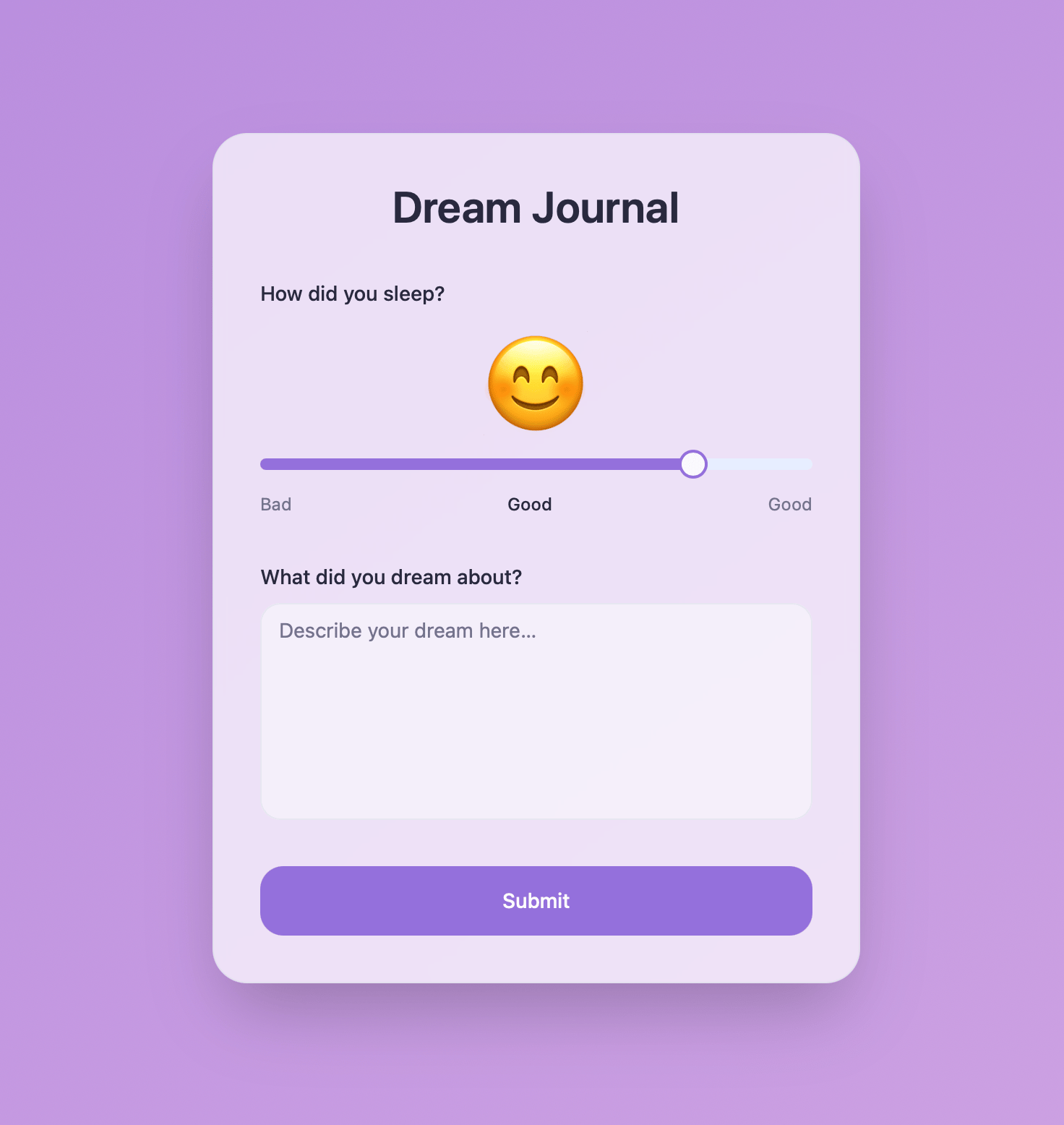
Dream Journal
AI-powered dream journal that analyzes patterns and themes. Built with Craft API and Lovable.
Learn more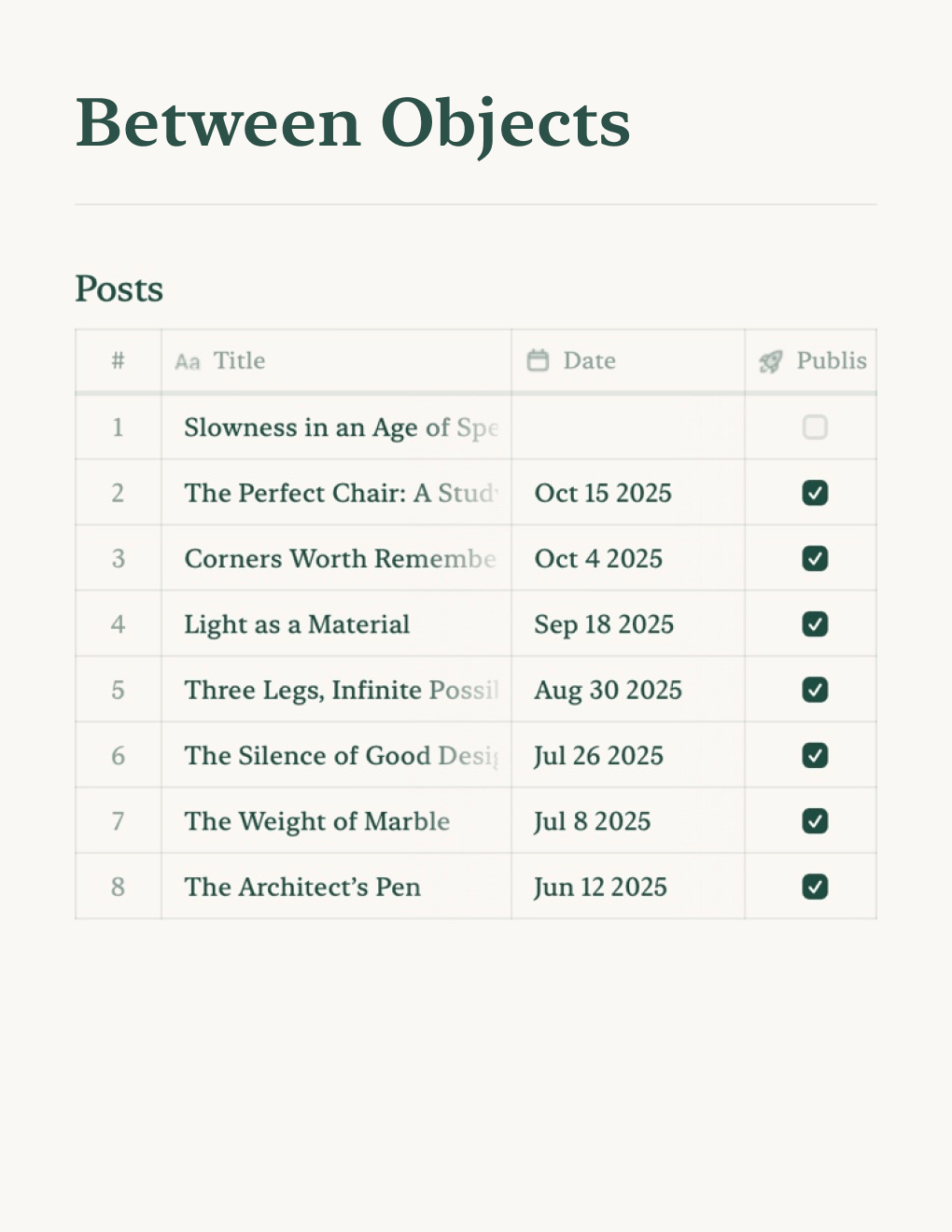

Personal Blog
Build a personal blog powered by Craft docs. Auto-syncs content via API — publish from your notes app.
Learn more